
❓ FAQ
Troubleshooting
Copy jobwhat's console log and send it with a screenshot through the feedback form so we can fix what went wrong.
If a form didn't fill, a button didn't appear or a job didn't log, send us what happened through the feedback form. A screenshot, or a copy of jobwhat's console log, usually lets us fix it without asking you to repeat anything.
Copy jobwhat's console log
jobwhat writes a short line to Chrome's console for each step it takes, every line starting with [jobwhat]. These lines never include your passwords.
- Open the page where the problem happens, for example the job application form.
- Open DevTools: right-click anywhere on the page and choose Inspect, or press Cmd+Option+J on a Mac or Ctrl+Shift+J on Windows and Linux.
- Open the Console tab and type
jobwhatin the Filter box, so only jobwhat's lines are shown. - Do the thing that goes wrong again: click Autofill, log the job, or reload the page.
- Right-click a line and choose Save as… to save the whole log as a file. Or select the lines, copy them, paste them into a text editor and save as a
.txtfile.
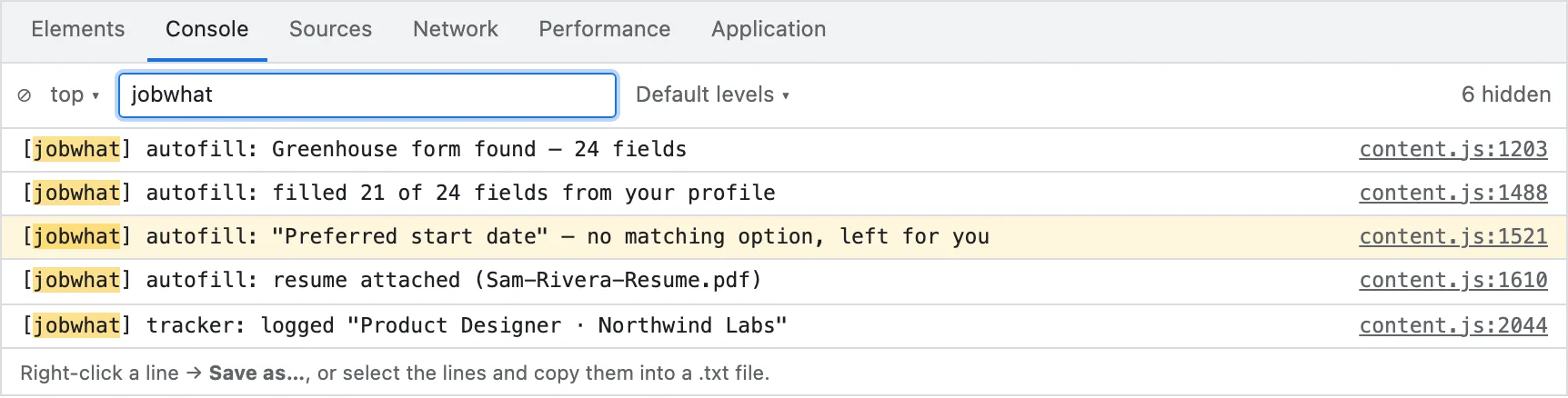
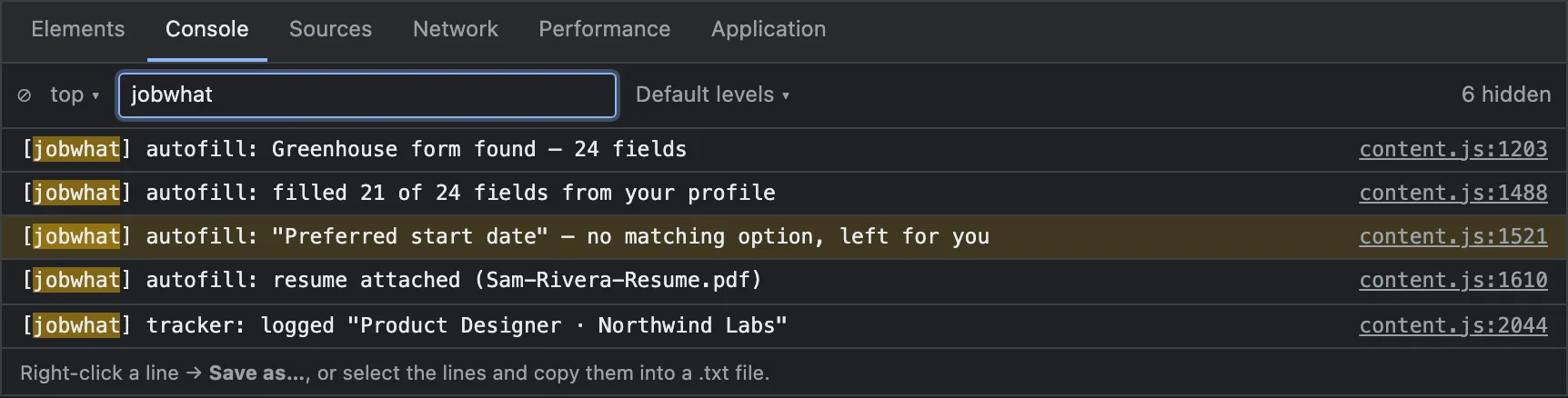
Look through the file before you send it. The log can include things shown on the page, such as a job title or a field label.
Send it with the feedback form
- Click the speech-bubble icon in the extension's header to open Send feedback, or use the form on jobwhat.app/support.
- Pick a star rating, choose Bug report, and say what you did, what you expected and what happened.
- Under Attachment (optional), choose your
.txtlog or a screenshot. One file per message: PNG, JPG or TXT, up to 5 MB. - Add your email if you'd like a reply, then press Send.
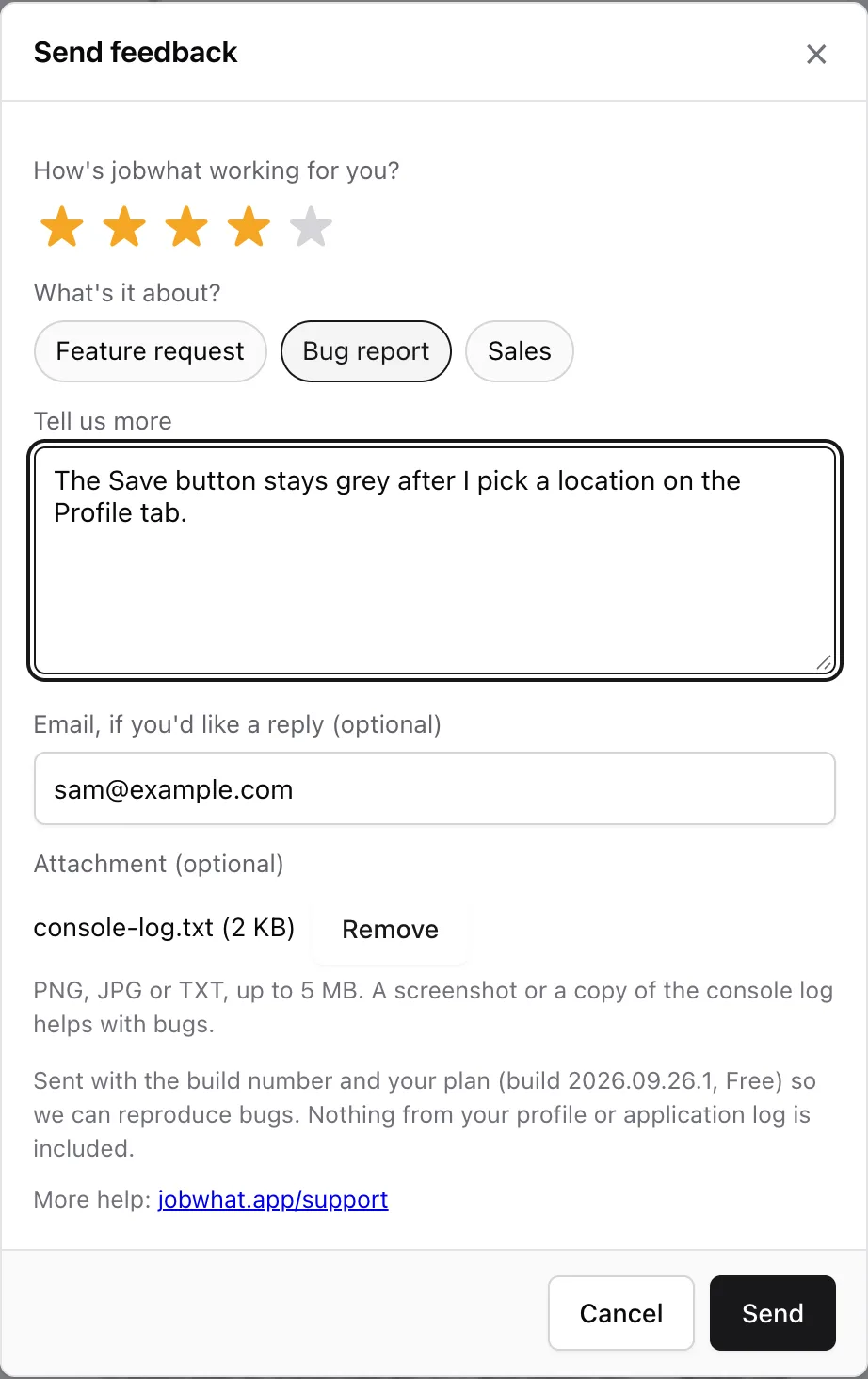
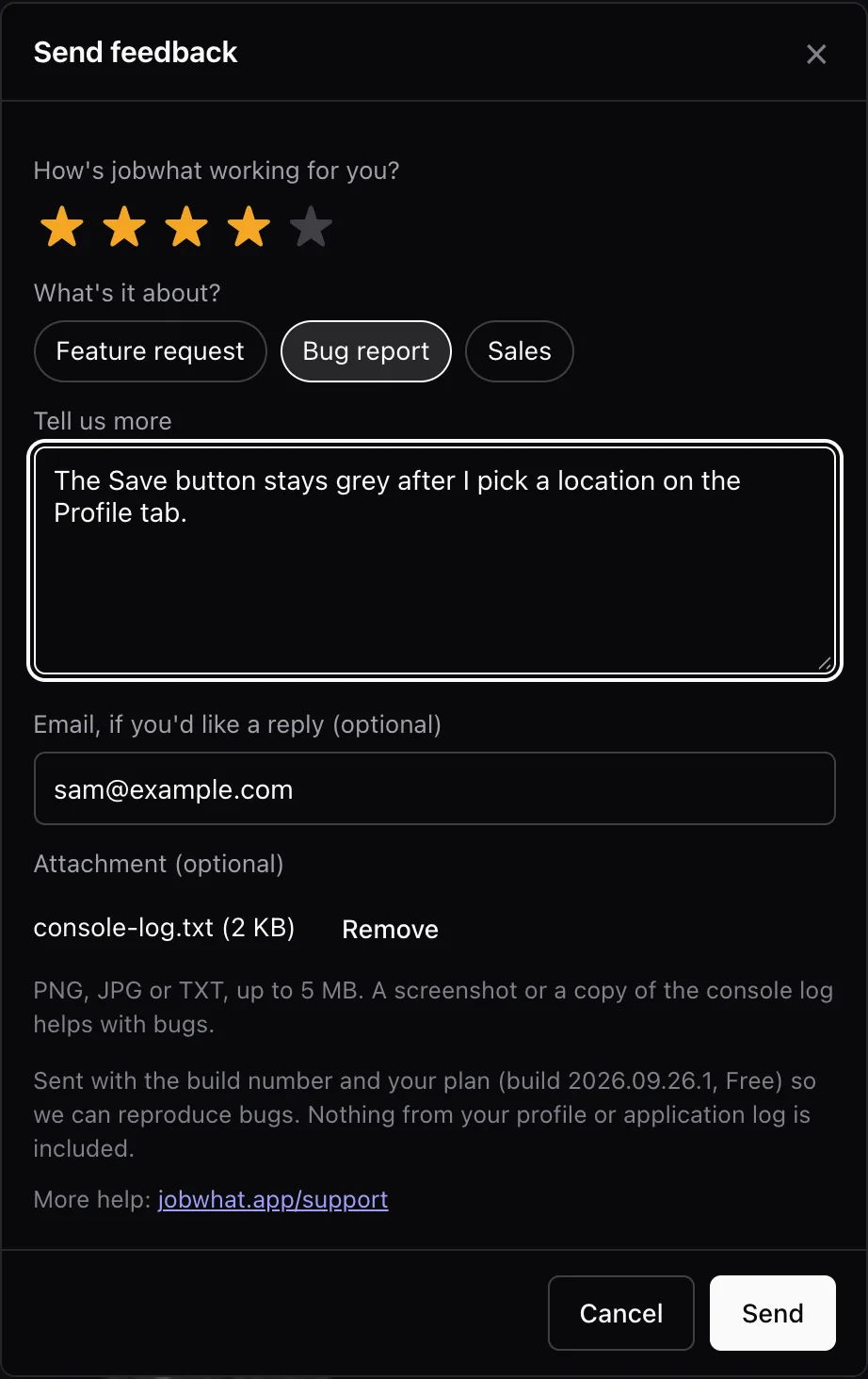
The message is saved first and the file goes up afterwards. If the upload fails, your message still arrives and the form tells you the attachment didn't. You can send the file again in a new message.
Attachments are private: only the jobwhat team can open them, and they're deleted after a year.