
Auto-bury & purging the Graveyard
Auto-bury sends jobs you haven't touched in a while to the Graveyard, so the Active log and the Alerts inbox only show what you're still working on. Burying isn't deleting: LinkedIn markers stay, and you can resurrect any job. It's off until you turn it on.
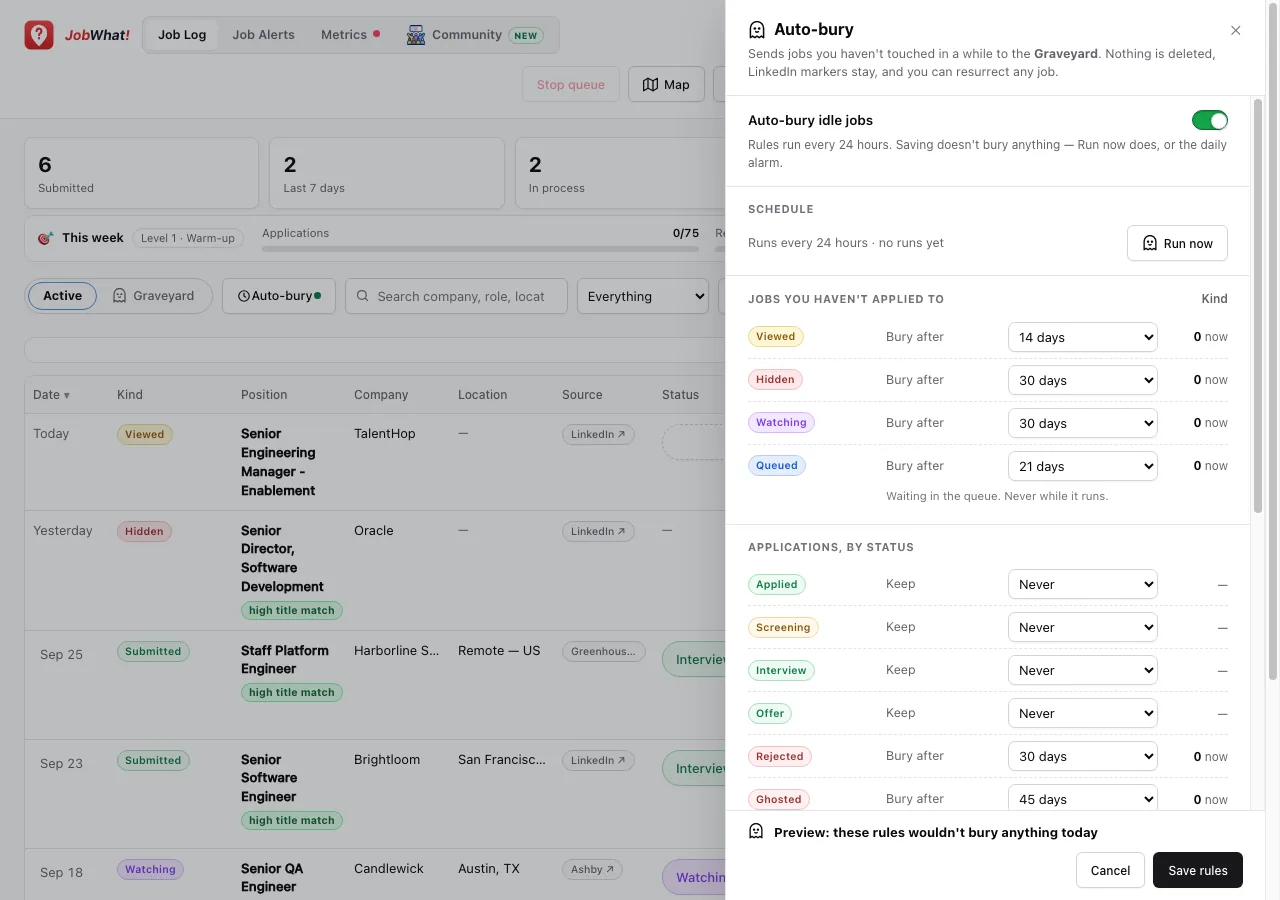
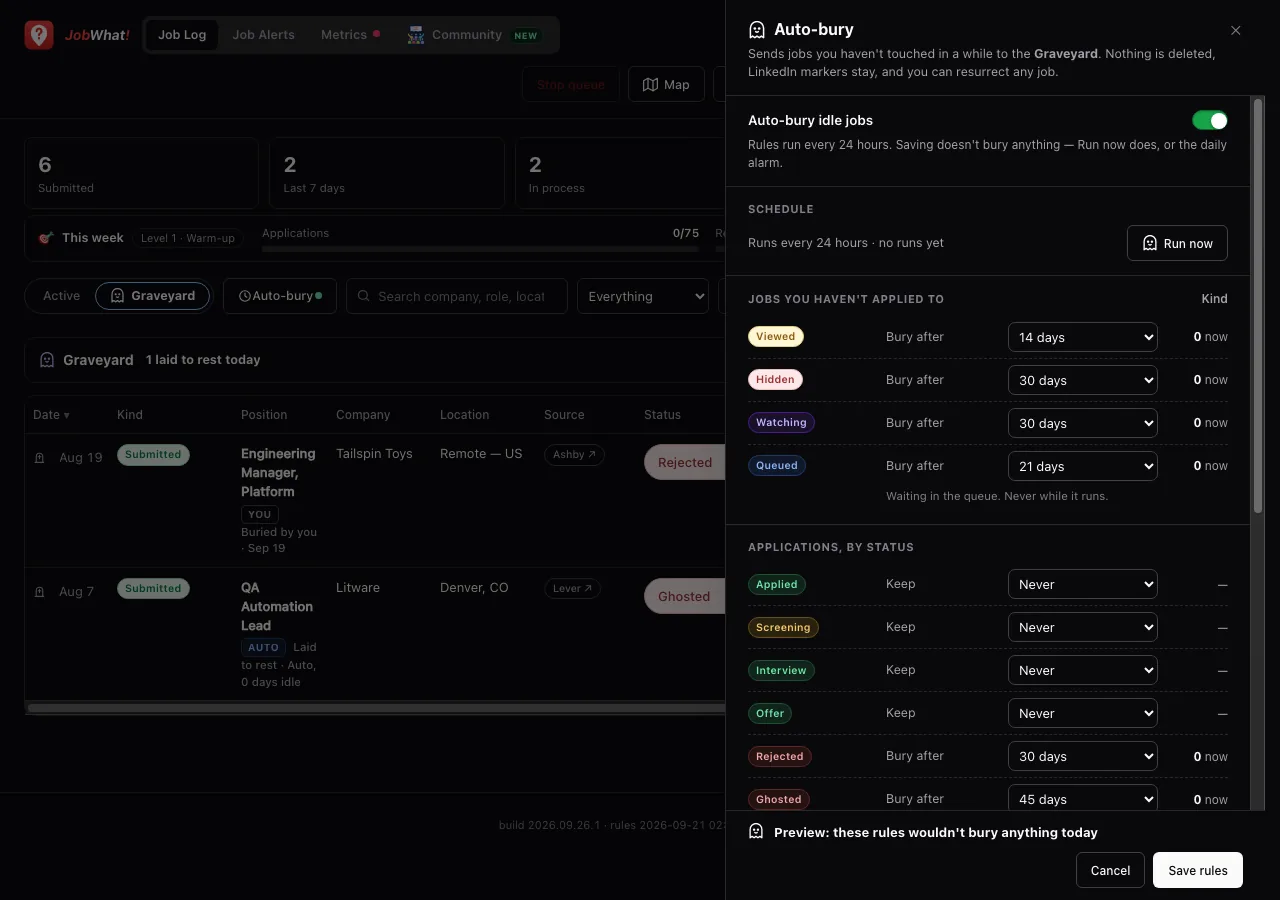
Where to find it
There's one set of auto-bury rules, and you can open it from three places:
- the Auto-bury button in the Job Log top bar,
- the Auto-bury button in Job Alerts, and
- the Auto-bury card on the popup's Settings tab (Set up rules, or Edit rules, Open Graveyard and Run now once it's on).
Changing the rules in one place changes them everywhere.
Rules
Turn on Auto-bury idle jobs, then set a number of days for each rule. A job is buried once it has gone that many days with no activity. Set a rule to Never to keep that kind of job. Each rule offers Never, 7, 14, 21, 30, 45, 60 or 90 days, or Custom… (1–365).
| Rule | Default |
|---|---|
| Viewed (jobs you opened but didn't apply to) | 14 days |
| Hidden | 30 days |
| Watching | 30 days |
| Queued (waiting in the queue, never while it runs) | 21 days |
| Rejected | 30 days |
| Ghosted | 45 days |
| Other application statuses (Applied, Screening, Interview, Offer, and any you added) | Never |
A submitted job follows the rule for its current status. Needs you and Needs answers are never buried.
The panel shows a live preview, such as Preview: these rules would bury 12 jobs today, with See the 12 jobs to list them and the jobs that matched a rule but were kept. Save rules saves without burying anything; only Run now or the daily run buries.
When it runs
- Rules run every 24 hours once auto-bury is on.
- After you first turn it on, the daily run waits a 7-day grace period, so nothing disappears the moment you enable it. The panel shows the date of the first automatic run.
- Run now runs the rules immediately, grace period or not, and shows the result: how many jobs were buried and by which rule, or Nothing to bury when every job has had recent activity.
- Undo on the result (or in the Graveyard header) resurrects everything that run buried, with their idle counters reset.
What counts as activity
Any of these resets a job's idle counter to 0 days:
- adding or editing notes,
- changing the status,
- setting, snoozing or finishing a reminder,
- changing the date,
- viewing the job again on a job board,
- a queue run on the job,
- resurrecting it from the Graveyard.
For example, if you add a note to a Ghosted job on day 40, it gets another 45 days.
Never buried
- Jobs with an upcoming reminder
- Jobs you marked Keep with the pin
- Jobs the queue is running right now, or that need you
Auto-bury in Job Alerts
The same rules apply to rows you acted on in Job Alerts (viewed, queued, watched or hidden). When auto-bury buries a job's Job Log copy, its Alerts row leaves the inbox too. If the Job Log copy is already gone, the Alerts row is cleared once it has been idle longer than the rule for its action. Rows you haven't acted on aren't affected.
Purge Graveyard
Purge Graveyard deletes Graveyard jobs permanently once they've been buried for longer than the number of days you choose.
| Setting | Values |
|---|---|
| Purge Graveyard (delete after) | 30, 45, 60, 90, 120, 180, 240 or 300 days, or Custom… (30–300) |
| Default | 60 days |
- Purging happens as part of each auto-bury run (daily or Run now) while auto-bury is on. It covers every Graveyard job, whether you buried it yourself or auto-bury did.
- Jobs buried in the same run are never purged in that run.
- Purged jobs can't be restored. Undo only brings back jobs a run buried, not jobs it purged. If you want to keep a job, resurrect it, or mark it Keep before it's buried.
- A purged job still won't come back as new in Job Alerts.
Checking Job Alerts & the inbox
Check now progress and summary, Inbox filters, row actions and undo, what Alerts skips, Job of the day, and Quick AI match daily limits.
Indeed, Glassdoor, ZipRecruiter & Craigslist
The same log, hide, watch, score and title-match helpers on four more job boards, and what's different on each.