
Toolbar & tracker
The jobwhat toolbar icon is the fastest way into your Job Log (and the Job Alerts / Metrics views beside it). On application pages it keeps the familiar autofill popup instead.
What a toolbar click does
| Where you are | What happens |
|---|---|
| Most pages (LinkedIn search, the new tab page, docs, email, …) | The icon opens the tracker (Job Log by default, or the last tracker view you used — Job Alerts, Metrics, or Community). |
| Greenhouse, Ashby, Lever, Workday, Gem, Rippling application hosts | The icon opens the popup so you can Autofill, edit your profile, or open the tracker from the header. |
| Company careers sites you've enabled | Same as ATS pages: the popup stays, so you can enable the site or Autofill. |
On ATS and enabled careers pages the toolbar icon also pulses and shows a small badge so you can see Autofill is available without opening anything.
Open tracker from the popup
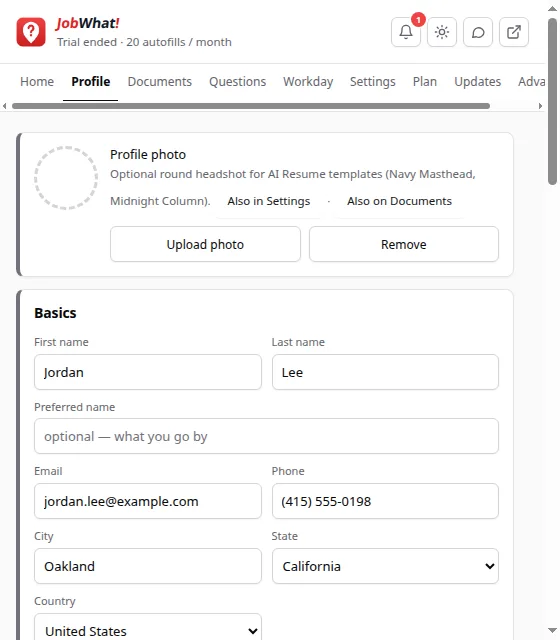
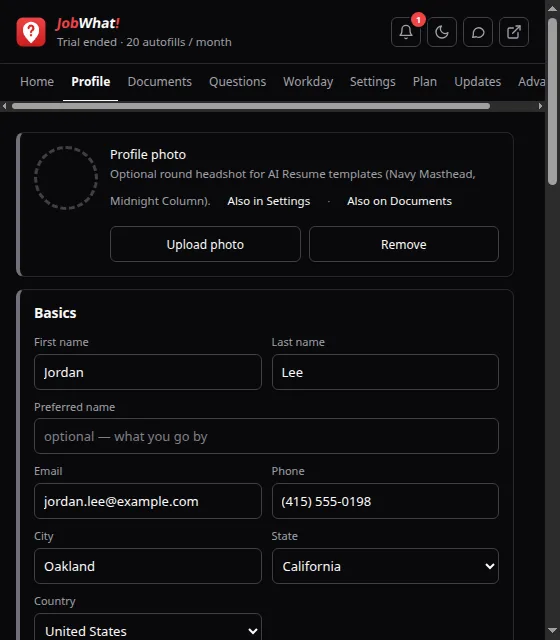
In the popup header, the Open tracker control (box with an arrow) focuses an already-open tracker tab or opens a new one. It works from every popup tab: Home, Profile, Documents, Questions, Workday, Settings, Plan, Updates and Advanced.
The popup footer View application log → link does the same for the Job Log.
Open tracker from an application page
On supported ATS pages, the in-page Autofill panel includes an Open tracker button in its header. Use it when you're mid-form and want the Job Log or Job Alerts without hunting for the toolbar.
Reminders on the icon
Overdue reminders show a count badge on the toolbar icon. New Job Alerts can also contribute to that badge when that option is on.
chrome://extensions (the circular arrow on its card) so already-open tabs pick up the new build. Reloading keeps your Job Log; you don't need to remove the extension.