
The job log
The job log is one list of every job jobwhat knows about: applications you submitted on an ATS, jobs you logged with +, jobs you watched, queued, viewed or hid on a job board, and anything you added by hand. Open it from the popup header (the three-line icon), the popup footer (View application log →), or the See the queue / See them all buttons on the Settings tab.
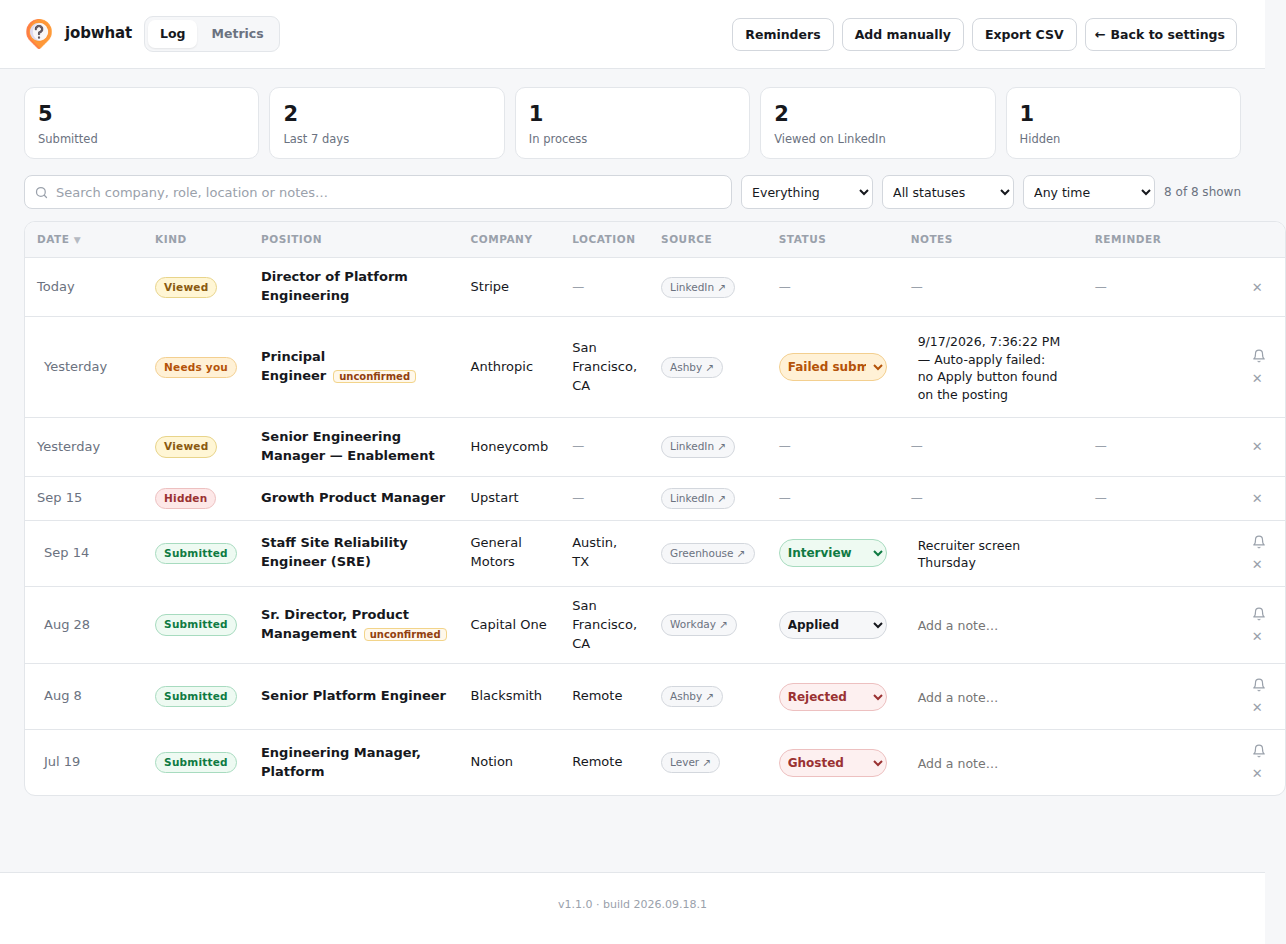
It all lives in the extension's storage in your browser. If you turn on Cloud sync, the log is also backed up to your account.
Top bar
| Control | What it does |
|---|---|
| Log / Metrics | Switches between the log and the Metrics view. |
| Stop queue | Stops a running apply queue pass. Only active while the queue is running. |
| Map | Opens the map beside the log. |
| Reminders | Filters the log to rows with overdue reminders. The pill shows how many are due, or how many are set. Click again to show everything. |
| Add manually | Logs a job you applied to elsewhere: position, company, location, link, status and date applied. |
| Export CSV | Downloads the log as a CSV file. |
| ← Back to settings | Returns to the popup's Settings view. |
Under the bar, five counters summarise the log: Submitted, Last 7 days, In process (any status past Applied that hasn't ended, custom statuses included), Viewed and Hidden.
Filters
| Control | Values |
|---|---|
| Active / Archived | Active jobs, or the ones you've archived |
| Search | Matches company, role, location and notes |
| Kind | Everything, Submitted, Viewed, Hidden |
| Status | All statuses, or one of your application statuses plus queue outcomes |
| Date | Any time, last 7, 30 or 90 days |
| Table / Swimlane | The layout |
The log shows 300 rows at a time; Show more loads the next batch.
Table
| Column | What's in it |
|---|---|
| Date | When you applied, viewed or hid it. Click the date to change it. |
| Kind | Submitted, Viewed or Hidden, or a queue state: Watching, Queued, Needs you (the queue filled the form and it's waiting for you, or it failed). A Watching row has a Queue button that promotes it into the apply queue. Needs you focuses the tab the queue left open. |
| Position, Company, Location | From the posting. The position links to it. |
| Source | The board it came from (LinkedIn, Indeed, Glassdoor, ZipRecruiter, Craigslist or the ATS), plus the company's ATS apply link when jobwhat found one. |
| Status | Applied, Watching, Screening, Interview, and so on. Choose from your own status list. On a Viewed row, picking a status turns it into an application. |
| Notes | Free text. The queue writes its reasons here, and Craigslist Watch saves the apply instructions from the posting. |
| Reminder | A bell to add a reminder, or the reminder itself with Dismiss and Edit. |
| Actions | Archive / Restore to Active, and ✕ to delete. On a Viewed row, ✕ forgets that you viewed it; on a Hidden row, it unhides. When Resume AI for queued jobs made a job-specific résumé, a PDF button downloads it, with the score before and after. |
Click a column header to sort.
Swimlane
Swimlane shows the same jobs as cards in columns, one column per status:
- A Viewed column first, for jobs you've opened on a board but not applied to.
- A Watching column.
- One column per status in Settings → Application statuses, in that order.
- Queue outcomes (Queued, Needs answers, Ready to submit, Failed submit) and any old status still used by a job get a column only while a job is in them.
Each card shows the company initial, position, company, location and status chip, plus the queue button and archive button. Drag a card to another column to change its status. Dragging a card out of Viewed turns it into an application with that status. Hidden jobs don't appear in swimlanes; use Table to see them. Cards in the Archived view can't be dragged.
Archive
Archive (the box icon on a row or card) moves a job out of the Active log without forgetting it. Archiving only changes what the log shows. On LinkedIn and the other boards the job is still marked as viewed, watched or applied, so it won't come back as new.
Open Archived to see archived jobs, and use Restore to Active to bring one back.
Reminders
Press the bell on any row to add a reminder: a title (default Follow up with {company}), a date (default a week from today) and optional notes. On and after the due date:
- the row lights up in the log,
- the Reminders button shows how many are due, and
- the extension's toolbar icon shows the due count as a badge.
Click Reminders to see only the overdue rows. Dismiss clears a reminder once you've done it. Settings → Reminders → Reset all reminders deletes them all.
Queue controls in the log
- Queue on a Watching row puts that job in the apply queue, the same as pressing ≡ on LinkedIn.
- Needs you opens the tab the queue left open so you can review and press Submit.
- Rerun (the queue button on a Ready to submit, Failed submit or Needs answers row) closes the leftover tab and queues the same posting again.
- Answer N on a Needs answers row opens the questions the form will ask, so you can answer them before the queue runs. See the apply queue.
What lands in the log
| Where | What creates an entry |
|---|---|
| Greenhouse, Ashby, Lever, Workday, Gem, Rippling | Submitting an application with Log applications I submit on |
| LinkedIn, Indeed, Glassdoor, ZipRecruiter, Craigslist | + (Applied), 👁 (Watching), ≡ (Queued, LinkedIn only), − (Hidden), and opening a job (Viewed) |
| The log itself | Add manually |
Removing an entry here is permanent. Erase everything on the Advanced tab clears the whole log.