

Your profile
Everything in your profile lives in the extension's storage, in your browser, and is used to fill forms you open. None of it is uploaded — the one exception is AI answers, which you turn on separately and which sends only the fields needed to answer a specific question.
Onboarding
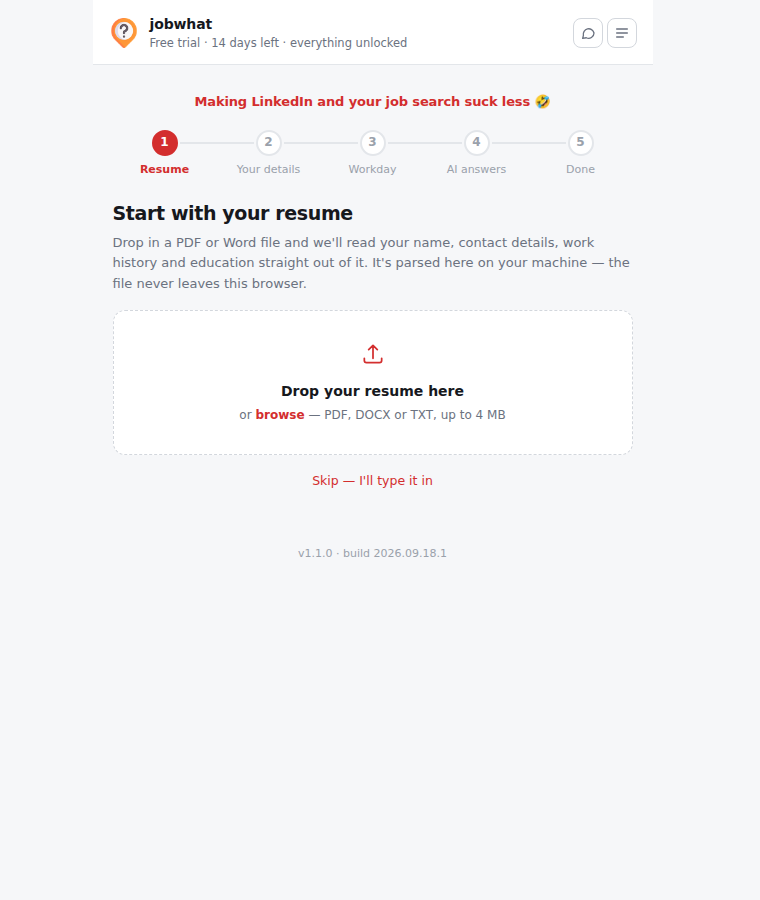
The first time you install, a four-step setup opens:
- Resume — drop in a PDF, DOCX or TXT and jobwhat reads it on your device (see Resume parsing below), or skip and type everything by hand.
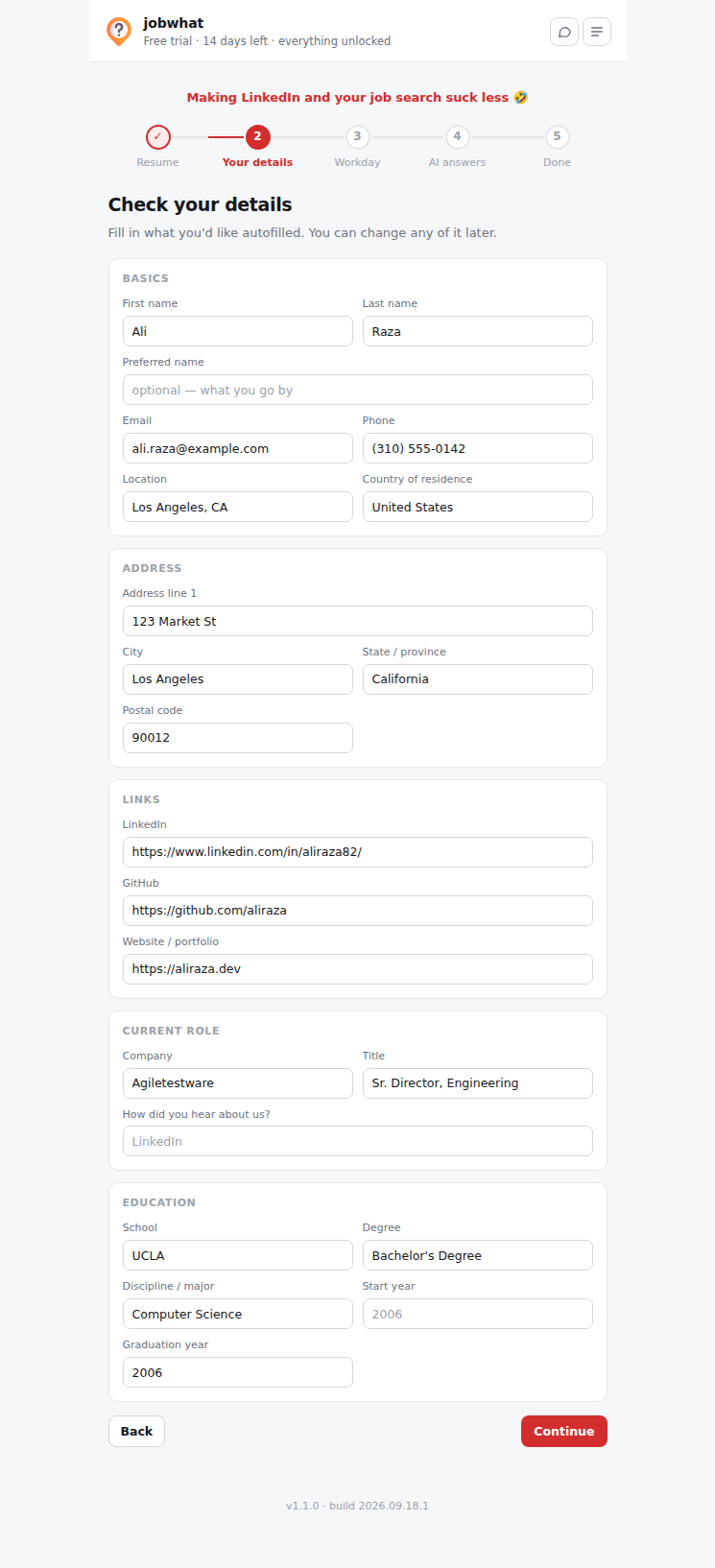
- Your details — the parsed (or blank) profile, for you to check and fill in.
- Workday — the account password and wizard answers Workday needs; see Workday setup.
- AI answers — opt-in, explained in full before you choose; see AI answers.
You can reopen the profile anytime from the extension popup's Profile tab, and re-run the resume parser from the Documents tab.
Resume parsing
Drop a PDF, DOCX or TXT into step 1 and it's read locally — pdf.js and fflate are bundled, so nothing is uploaded and the extension makes no network call to do it. Out of it come your name, email, phone, location, LinkedIn/GitHub/site, current company and title, school, degree, field and graduation year, plus a full work history (title, company, dates, "I currently work here" and bullet points) and a skills list for Workday.
It's heuristics, not magic: dates are found inside a line rather than by splitting it (so "Founder — BuildButler Jun 2025 – Present" parses correctly), the name is the first title-case line with no digits or @, and section headings route the rest. Everything it produces is shown for review before it's saved, and re-uploading later on the Documents tab shows a checklist of what it found against what you already have.
Profile fields
The Profile tab groups fields the same way onboarding does:
| Section | Fields |
|---|---|
| Basics | First name, last name, preferred name, email, phone, location, country of residence |
| Address | Address line 1, city, state/province, postal code — used by Workday and any board with a structured address |
| Links | LinkedIn, GitHub, website/portfolio |
| Current role | Company, title, how you heard about the role |
| Education | School, degree, discipline/major, start year, graduation year |
| Work authorization | Authorized to work in the country, will require visa sponsorship |
| Voluntary self-identification | Gender, pronouns, Hispanic/Latino, race/ethnicity, sexual orientation, transgender, veteran status, disability status, age range |
Voluntary self-identification is optional — leave any of it blank and that question is skipped wherever it's asked. It's filled in once and used in four places: Greenhouse's EEO dropdowns, Ashby's diversity survey, and Workday's Voluntary Disclosures and Self Identify steps.
Address handling
There's no geocoding API, because the extension's own copy says nothing you type leaves the browser. Address help comes from two places instead:
- Chrome's own autofill. Every field carries the right
autocompletetoken (address-line1,address-level2,postal-code, …), so Chrome offers addresses you've already saved in the browser. - Shipped lookup tables. ZIP → state → country, postal-code shape → country (US / Canada / UK / Netherlands), a state/province list, a country list, and about 90 well-known cities as a last resort. Typing
94110fills State California and Country United States; typingSan Francisco, CAin Location fills City and State.
Inference only ever fills a blank field — anything you typed is left alone, except expanding a state abbreviation to its full name (Workday's dropdown lists California, not CA). Each inferred value flashes green with a note saying where it came from.
Documents
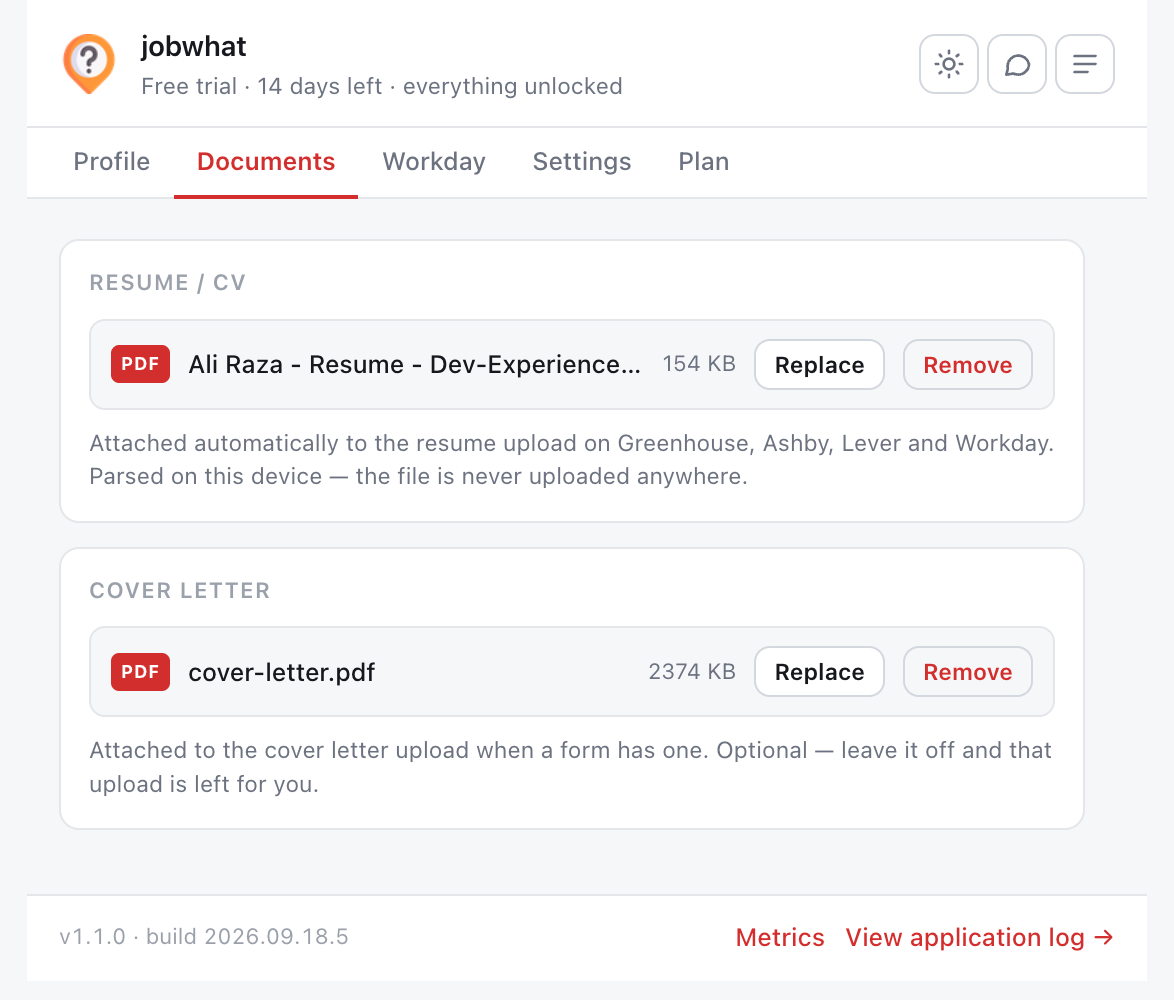
The Documents tab holds your resume and cover letter:
- Resume / CV — attached automatically to the resume upload on Greenhouse, Ashby, Lever and Workday. Parsed on your device; never uploaded anywhere.
- Cover letter — attached wherever a board has that upload. Optional: leave it off and that upload is left for you.
Accepted formats: PDF, DOCX, TXT, MD, DOC, RTF.