

Settings reference
The Settings tab (popup → Settings) is one page of toggles plus per-category data with its own reset controls. A running total — fields filled, across every form — sits at the top of the Behaviour card once you've filled your first one.
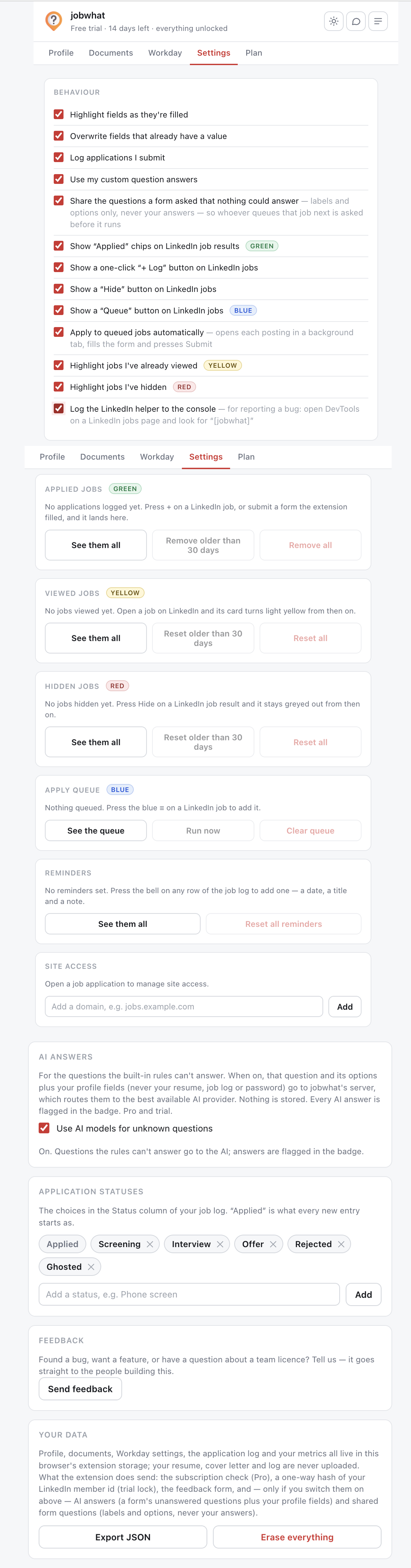
Behaviour
| Setting | Default | What it does |
|---|---|---|
| Highlight fields as they're filled | On | Fills one field at a time: scrolls it to the centre of the screen, gives it a blue look, then marks the whole field's border green (filled) or red (left for you) and holds for about half a second before moving on — long enough to actually follow, not just notice a flicker — with a small robot guide that follows along. Turn it off to fill everything instantly with no animation. |
| Overwrite fields that already have a value | Off | Fills only blank fields unless turned on |
| Log applications I submit | On | Writes an entry to the job log on submit |
| Use my custom question answers | On | Applies your keyword → answer pairs (see Answer-and-remember) |
| Share the questions a form asked that nothing could answer | On | Sends a required question's label and options (never your answer) so the next person who queues that job is asked before it runs |
| Setting | Default | What it does |
|---|---|---|
| Show "Applied" chips on LinkedIn job results | On | The green/yellow/blue/red chips from your log |
| Show a one-click "+ Log" button | On | Logs a job without leaving search results |
| Show a "Hide" button | On | Greys a card out; press again to unhide |
| Show a "Queue" button | On | Adds a job to the apply queue |
| Highlight jobs I've already viewed | On | Light-yellow tint on opened cards |
| Highlight jobs I've hidden | On | Grey tint, persists across searches |
| Log the LinkedIn helper to the console | Off | For reporting a bug — open DevTools on a LinkedIn jobs page and look for [jobwhat] |
Apply queue
| Setting | Default | What it does |
|---|---|---|
| Apply to queued jobs automatically | Off | Opens each posting in a background tab, fills the form and presses Submit |
The queue card on this tab also shows what's waiting, with Run now and Clear queue.
AI answers
One toggle — Use AI models for unknown questions — gated behind a consent dialog the first time you turn it on. See AI answers for exactly what gets sent. Pro and trial only.
Your data, by category
Four categories each get their own card with a count, a See them all link into the job log, and reset controls:
- Applied jobs — remove entries older than 30 days, or remove all.
- Viewed jobs — reset older than 30 days, or reset all.
- Hidden jobs — reset older than 30 days, or reset all.
- Apply queue — see the queue, run it now, or clear it.
Reminders get their own reset-all, separate from the rest of the log.
Site access — Greenhouse, Ashby, Lever and Workday work everywhere automatically. A company that hosts its application directly on its own domain (an embedded Ashby form on careers.example.com, say) needs one extra, opt-in step, and this card is where it's managed:
- If the page open in the current tab looks like it needs this, jobwhat can also offer it right at the top of the popup the moment you open it — see Autofilling a self-hosted or embedded form for how that one-click prompt works.
- Add a domain by typing it in directly, whether or not it's the site you're currently on.
- Every domain you've enabled is listed with a ✕ to remove it.
Either way, Chrome shows its own one-time permission prompt for that domain — that dialog is Chrome's own security UI and can't be skipped — and the affected tab reloads automatically afterward so the badge just shows up, no manual refresh needed.
Export and erase
From the marketing site's privacy section and the extension itself: export everything as JSON or CSV, or erase it, from Settings. There's no server-side copy to also delete — what's in your browser's storage is the whole thing (aside from anything you've explicitly sent via AI answers or feedback, which is never stored on the server either).