AI answers
AI answers is off by default. It's opt-in from step 4 of onboarding, or Settings → AI answers — and turning it on always shows the same consent text first, so it's the same information whichever way you turn it on.
What it's for
The built-in rules know the fields every form asks for. For the odd question they don't recognise — a strangely worded dropdown, a time-zone question, a Yes/No the form phrased in an unusual way — AI answers routes it to a cloud model instead of leaving it blank.
Only two kinds of question ever go to the model: short text answers, and picks from a list (options read off selects, radios, button groups and react-select menus). Free-text essay questions always stay with you.
Exactly what gets sent
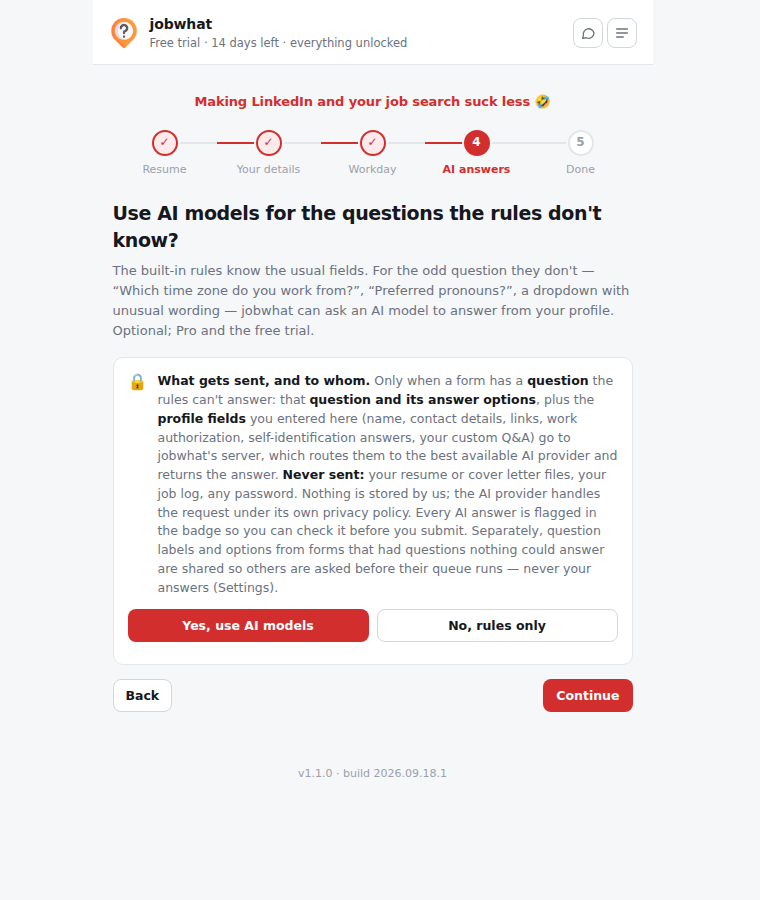
When you turn it on, you see this before you confirm:
When a form has a question jobwhat's built-in rules can't answer, it sends that question (and its answer options) together with the profile fields you entered here — name, contact details, links, work authorization, self-identification answers, your custom Q&A — to jobwhat's server, which routes them to the best available AI provider and returns the answer.
Not sent: your resume or cover letter files, your job log, and any password. Nothing is stored by us. The AI provider processes the request under its own privacy policy.
Separately, and whether or not AI answers are on: when a form asks a required question that nothing could answer, the question's label and options are shared with jobwhat's server so the next person who queues that job is asked before it runs — never your answers. Switch that off in Settings if you prefer.
Every AI answer is flagged in the badge so you can check it before you submit. You can switch this off at any time in Settings.
In short:
| Sent | Never sent |
|---|---|
| The unanswered question and its options | Your resume or cover letter files |
| Your profile's text fields | Your job log |
| Your custom Q&A | Passwords |
| A little job context (title, company, the labels/values the rules already filled) | — |
How it's answered
The request goes to jobwhat's server, which asks a cloud model through OpenRouter — Gemini Flash-Lite first, falling back to DeepSeek V4.1 Flash, then GPT-5.4 nano — at temperature 0, in JSON mode, and snaps each option-style answer to the exact option text on the form. Answers are applied through the same widget fillers as everything else, and every one is listed in the badge under "Answered by the AI — check these."
Any server or model failure is treated as a null result: the field is simply left alone, the same as a question the rules couldn't answer with AI answers off.
Turning it on or off
- Onboarding step 4 shows the consent text as a card, with Yes / No buttons directly beneath it — no second dialog, because the card is the consent.
- Settings → AI answers shows a confirmation dialog the first time you flip the toggle on; declining leaves it off, confirming turns it on. Turning it back off needs no dialog.
Available on Pro and during the free trial.