Greenhouse, Ashby & Lever
The badge
Open a job application on *.greenhouse.io, *.ashbyhq.com, jobs.lever.co or jobs.eu.lever.co and a floating card appears in the bottom-right, inside a shadow root so page CSS can't touch it. jobwhat picks the densest form on the page — or, when a page has no <form> element at all, the smallest box holding every field — and only shows itself if that looks like an application (an email or file field plus apply/resume wording). A MutationObserver keeps watching for 45 seconds so late-rendering React forms are caught too.
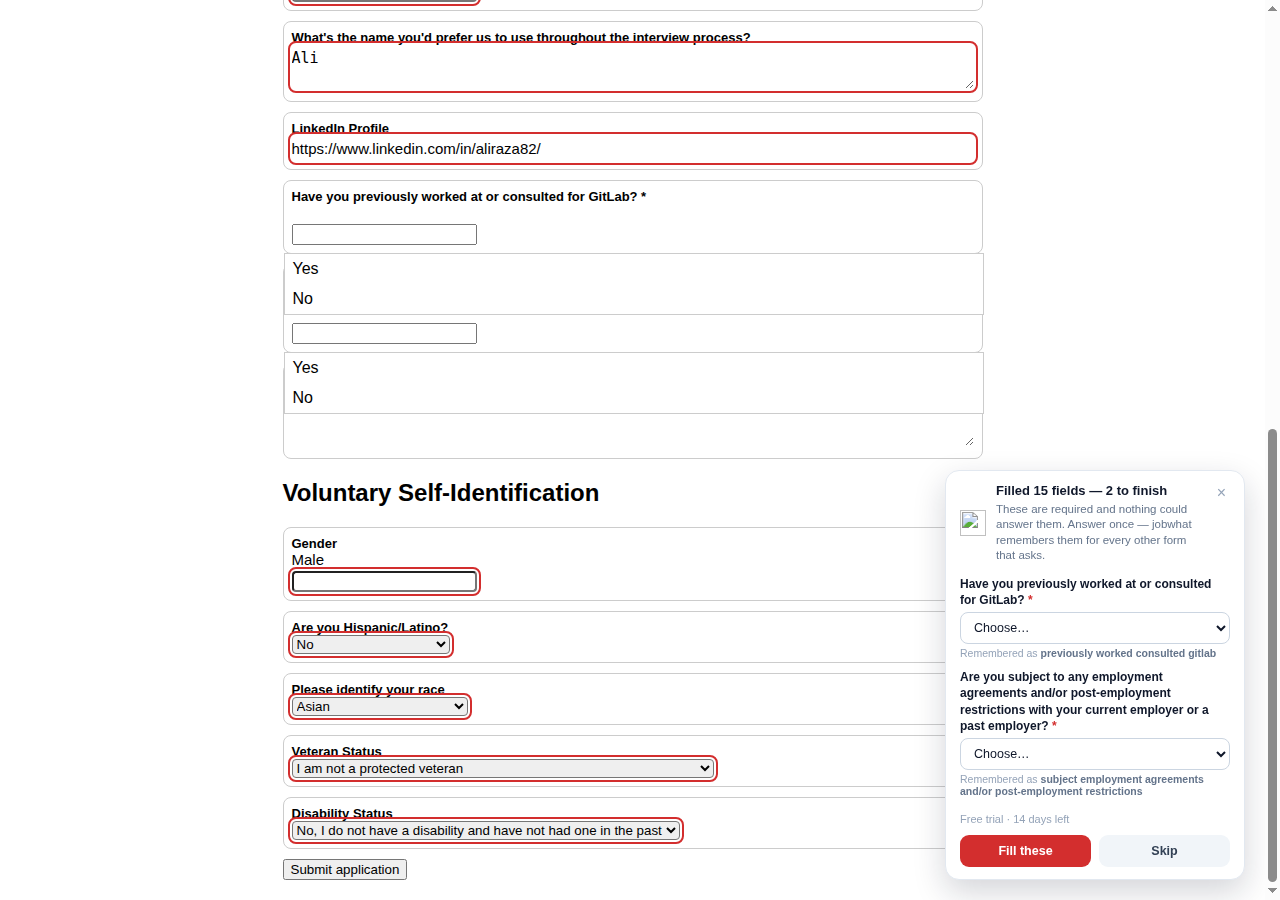
Click Autofill and, if Highlight fields as they're filled is on (see Settings), jobwhat fills the form one field at a time rather than all at once: it scrolls each field to the centre of the screen, gives it a blue look, fills it, marks the whole field's border green (filled) or red (left for you), then holds for about half a second before moving to the next — long enough to actually watch, not just catch a flicker — with a small robot mascot following along. Turn that setting off and the same fill happens instantly, with no animation.
- The badge reports how many fields were filled — and, whenever more than one source contributed, a breakdown right there ("12 from your profile, 3 by AI") instead of just a bare total.
- A Left for you chip list covers what it deliberately skipped, an Answered by the AI — check these chip list covers what an AI model filled in, and an Answered by you — remembered for next time chip list covers anything you answered yourself for a required question (see Answer-and-remember). All three are clickable: press any chip to jump straight to that field on the page.
- Nothing is submitted. You review the form and press Submit yourself.
What gets filled
| Widget | Approach |
|---|---|
| Text / email / tel / textarea | Native value setter plus input/change events, so React state updates too |
<select> | Options scored against your stored value; best match selected |
| Radio group | Grouped by name/fieldset, each option's label scored |
| react-select combobox (modern Greenhouse) | Full pointer sequence to open it, type to filter, wait for the results list, click the best match, verify it landed. Retries with the unfiltered list, then shorter prefixes, if nothing fits. |
| File input | Rebuilt as a real File via DataTransfer, plus a synthetic drop on the dropzone |
| Checkbox | Never touched. Consent boxes stay yours. |
Matching runs on a text blob built from each field's label, aria-label, aria-labelledby, its wrapping label or legend, plus name, id and placeholder. That blob is tested against ordered rules, each carrying an allow flag:
allow: "text"(the default) — may only write into text inputs and textareas.allow: "any"— may also answer selects, radio groups and comboboxes.
That's what stops "Are you subject to any employment agreements … with your current employer?" (a Yes/No dropdown) from being answered with your company name — identity rules never touch a dropdown; only Yes/No, EEO, location, country and education rules do.
Option matching is fuzzy — exact, then whole-word prefix, then whole-word containment, then stemmed word overlap — run through a synonym table first. That's why a saved Male selects Ashby's Man, Asian selects Asian or Asian American, United States selects United States of America, and No selects No, I do not have a disability and have not had one in the past.
School fields get one more trick, since a live search combobox can come back with nothing at all for an abbreviation before that fuzzy matching ever gets a chance: a saved UCLA also tries the query University of California, Los Angeles (and the reverse, spelled-out name → abbreviation), covering several dozen common schools.
Board-specific notes
Ashby additionally handles Yes/No button groups, custom radio lists, and the diversity-survey checkboxes. Ashby and Greenhouse are often embedded as an iframe on a company's own careers page — jobwhat's content script declares all_frames so it runs inside the embed, and positions the badge to actually be visible whether the embed scrolls itself or not.
Lever's markup is plain — every input sits inside a labelled wrapper — so the generic engine handles most of it with no special code. Two things need help: the Current location typeahead (jobwhat types, then clicks the matching dropdown entry so the hidden selectedLocation field gets a real value), and the job title/company, which come from the posting header above the form rather than the page title.
A site that isn't one of the usual boards
The four boards above work the instant you land on them — no setup. A company that runs Greenhouse, Ashby, Lever or Workday embedded on its own domain (careers.example.com, rather than example.greenhouse.io) needs one extra, opt-in step, because a browser extension can't quietly read every page you visit.
Open the popup on that page and, if it looks like a job application — an email or file field plus apply/résumé wording, checked in every frame so an embedded iframe counts too — an Autofill this site banner appears right at the top, above the tabs. One click:
- Chrome shows its own one-time permission prompt for that domain (its own security UI — this can't be skipped or skinned).
- Approve it, and jobwhat reloads the page for you. The badge just shows up.
That's the whole flow — no trip to Settings required. If you'd rather add a domain you're not currently looking at, or see and remove everything you've enabled so far, Settings → Site access covers the same thing directly (see Settings).
Custom questions
Anything the built-in rules don't recognise — "What's the largest number of engineers under your management hierarchy?" — can be answered with a keyword → answer pair from the Workday settings page's custom Q&A. The keyword just has to appear in the question; the answer is then matched against the real options, so it works for dropdowns, radios, button groups and text alike. Free-text essay questions are always left alone.
For the case where nothing — not the rules, not custom Q&A — can answer a required question, see Answer-and-remember.